> ## Documentation Index
> Fetch the complete documentation index at: https://docs-relytone.data.cloud/llms.txt
> Use this file to discover all available pages before exploring further.
# Use n8n to Chat with Your RelytONE Database
# Why n8n + RelytONE?
[n8n](https://n8n.io/) is a low-code automation platform that chains triggers, APIs, and AI nodes into reusable workflows. In this guide we’ll connect n8n’s “Chat with a database using AI” template to RelytONE—routing prompts through our LLM proxy and running SQL on our PostgreSQL compute—so you can talk to your database through natural language.
# Prerequisites
* A RelytONE project with at least one compute running (get one for free at [https://data.cloud/relytone](https://data.cloud/relytone)).
* A RelytONE LLM proxy token. Create and manage tokens in the console via `AI Tools > LLM Access`. [See docs](../ai-tools/llm).
* Access to n8n Cloud or a self-hosted n8n instance.
# 1. Start from n8n’s AI + Database Template
Import the [Chat with a Database using AI](https://n8n.io/workflows/2090-chat-with-a-database-using-ai/) template. n8n will open the template setup page with two options:
* **OpenAI Chat Model** – LLM credential.
* **Postgres Tool** – database credential.
# 2. Configure the LLM Node with RelytONE
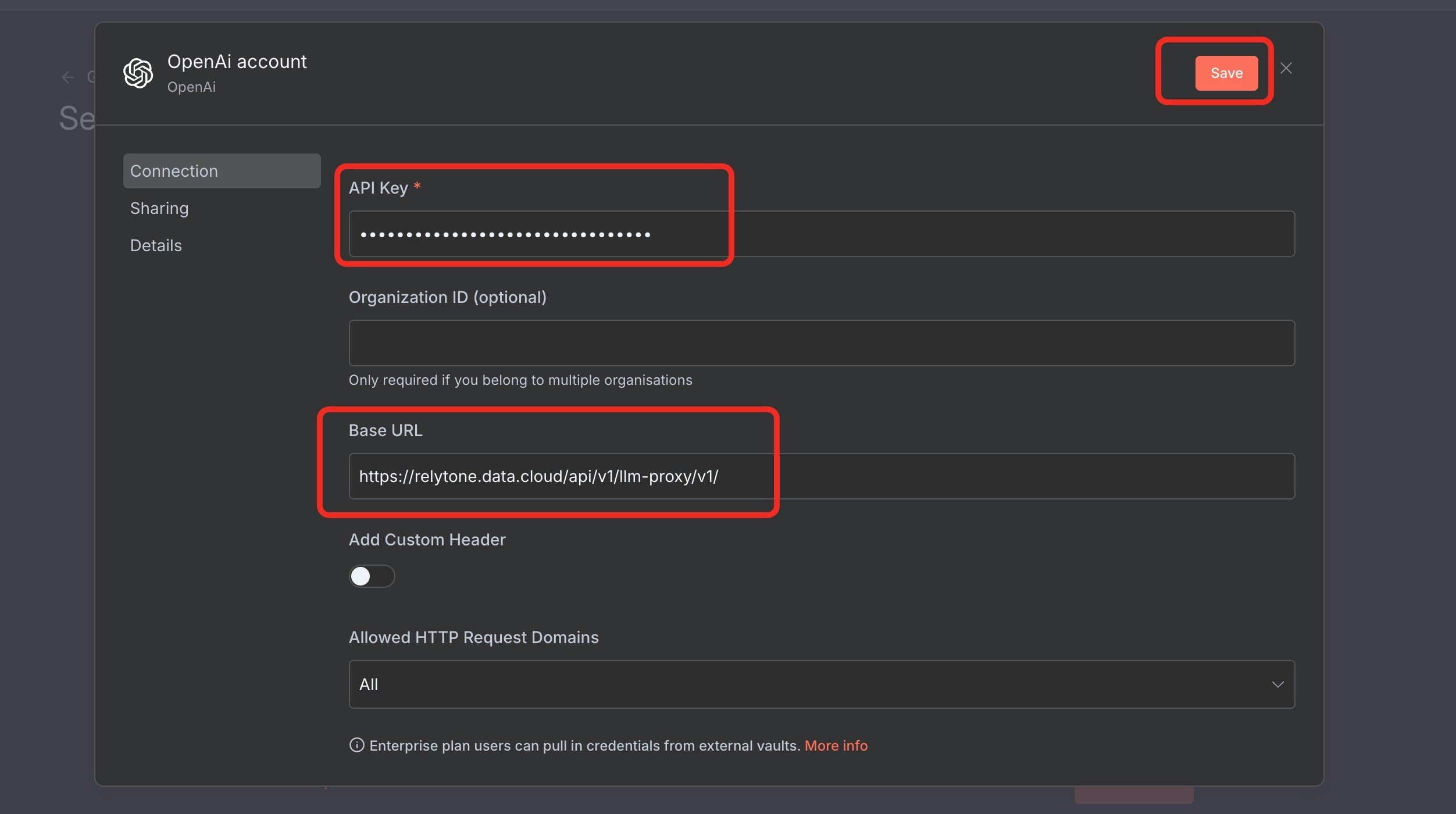
In **OpenAI Chat Model**, click the pencil icon:
* **Base URL / Endpoint**: `https://relytone.data.cloud/api/v1/llm-proxy/v1/`
* **Access Token**: paste your RelytONE token
n8n handles the rest—no custom headers needed.
 # 3. Connect the Postgres Node to RelytONE Compute
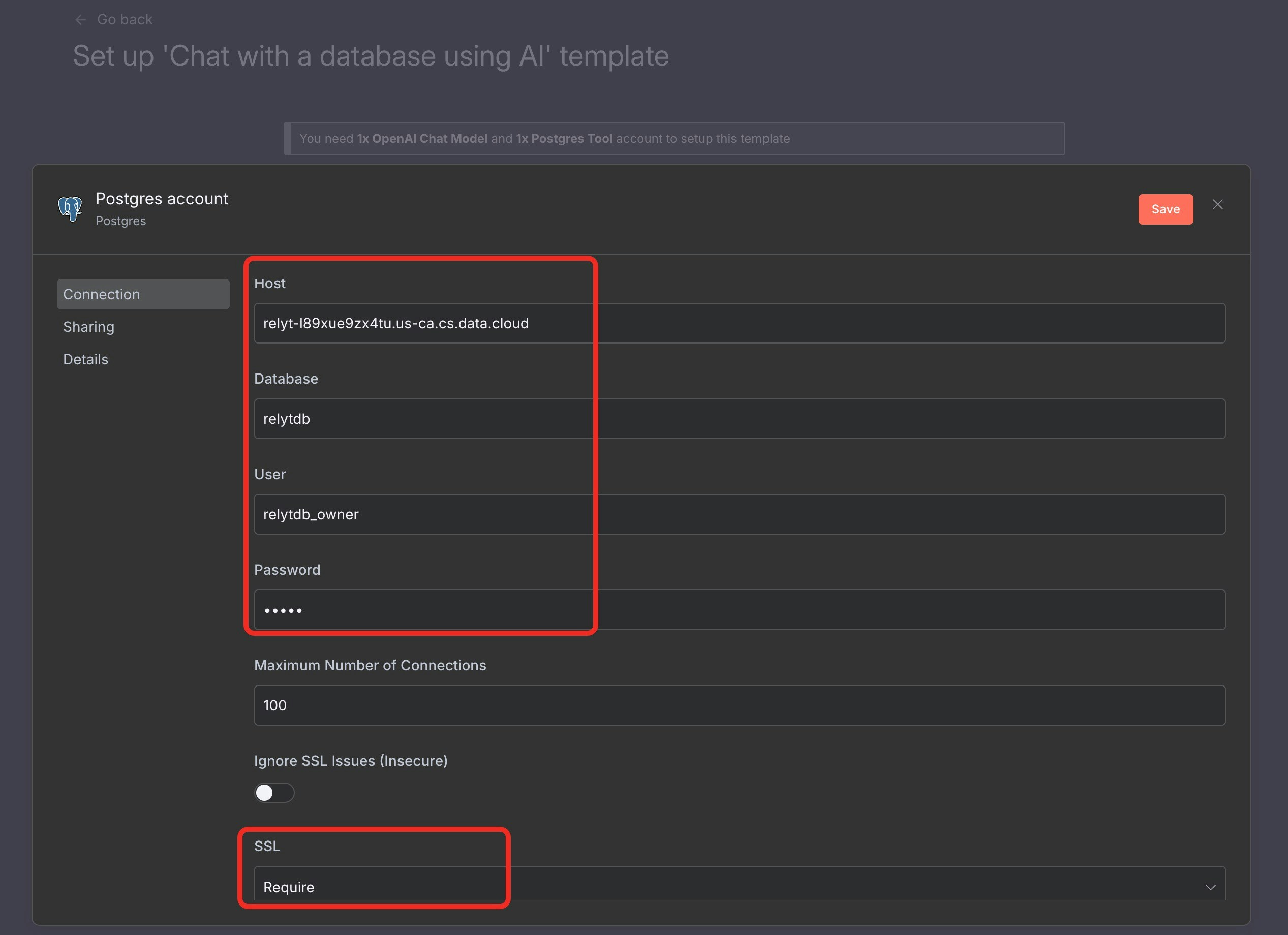
In **Postgres Tool**, edit the credential and copy everything from `Project > Connect`:
* **Host / Port / Database / User**: as shown in the dialog
* **Password**: input manually (RelytONE does not retain it)
* **SSL Mode**: `require`
Save to bind the Postgres node to your compute.
# 3. Connect the Postgres Node to RelytONE Compute
In **Postgres Tool**, edit the credential and copy everything from `Project > Connect`:
* **Host / Port / Database / User**: as shown in the dialog
* **Password**: input manually (RelytONE does not retain it)
* **SSL Mode**: `require`
Save to bind the Postgres node to your compute.
 # 4. Chat with Your Data
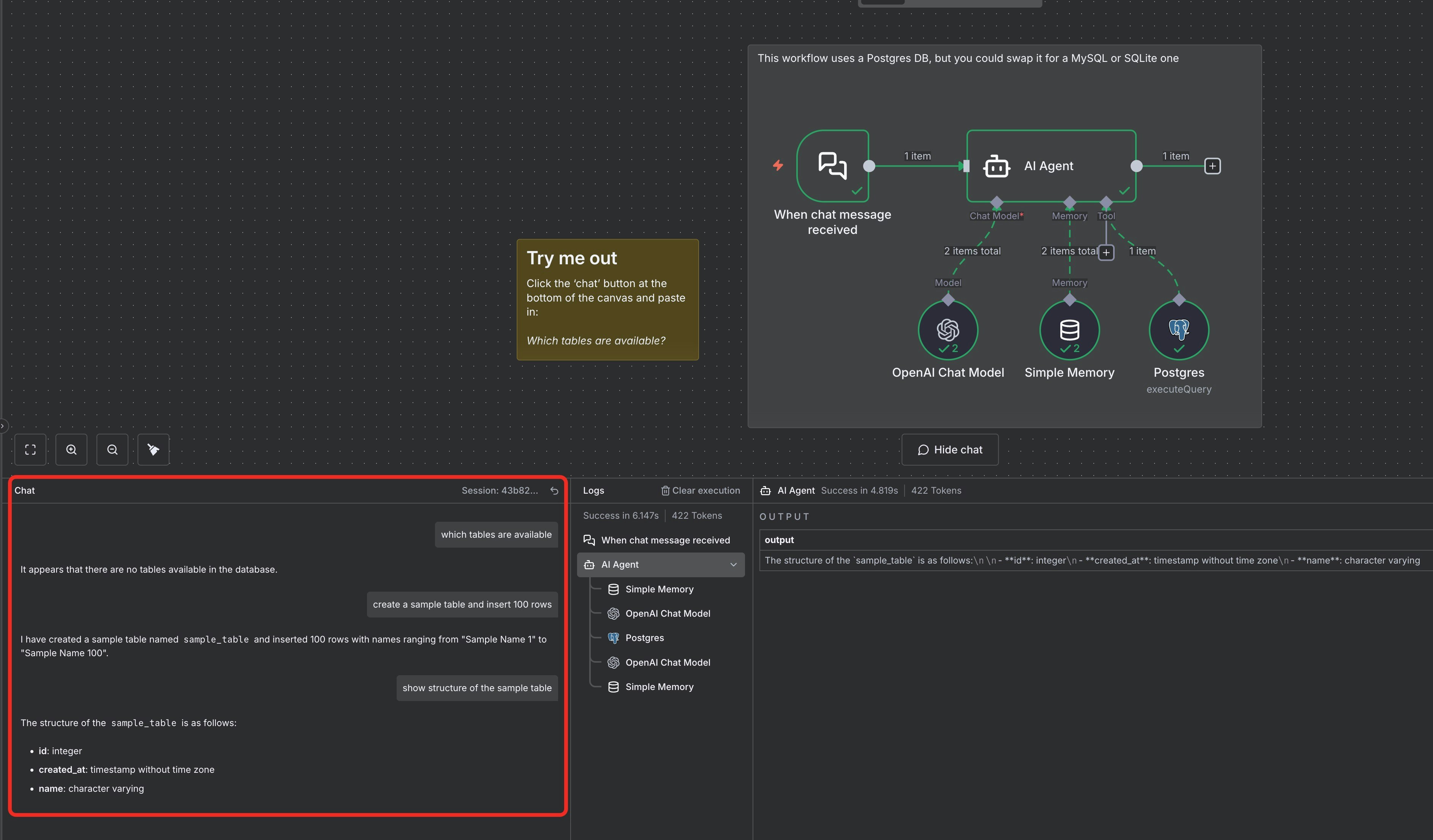
Once both options are green, click `Continue` to open the workflow. Use the lower-left chat panel to ask questions; the LLM turns prompts into SQL, runs them on RelytONE over SSL, and replies in the same pane.
# 4. Chat with Your Data
Once both options are green, click `Continue` to open the workflow. Use the lower-left chat panel to ask questions; the LLM turns prompts into SQL, runs them on RelytONE over SSL, and replies in the same pane.
 # About RelytONE
RelytONE is an all-in-one serverless PostgreSQL with built-in vector search, full-text indexing, and pg\_duckdb analytics. It also delivers LLM access, observability, so you can launch AI-native workflows without reaching for extra tooling.
# About RelytONE
RelytONE is an all-in-one serverless PostgreSQL with built-in vector search, full-text indexing, and pg\_duckdb analytics. It also delivers LLM access, observability, so you can launch AI-native workflows without reaching for extra tooling.