> ## Documentation Index
> Fetch the complete documentation index at: https://docs-relytone.data.cloud/llms.txt
> Use this file to discover all available pages before exploring further.
# Create a Project
# Start to create a project
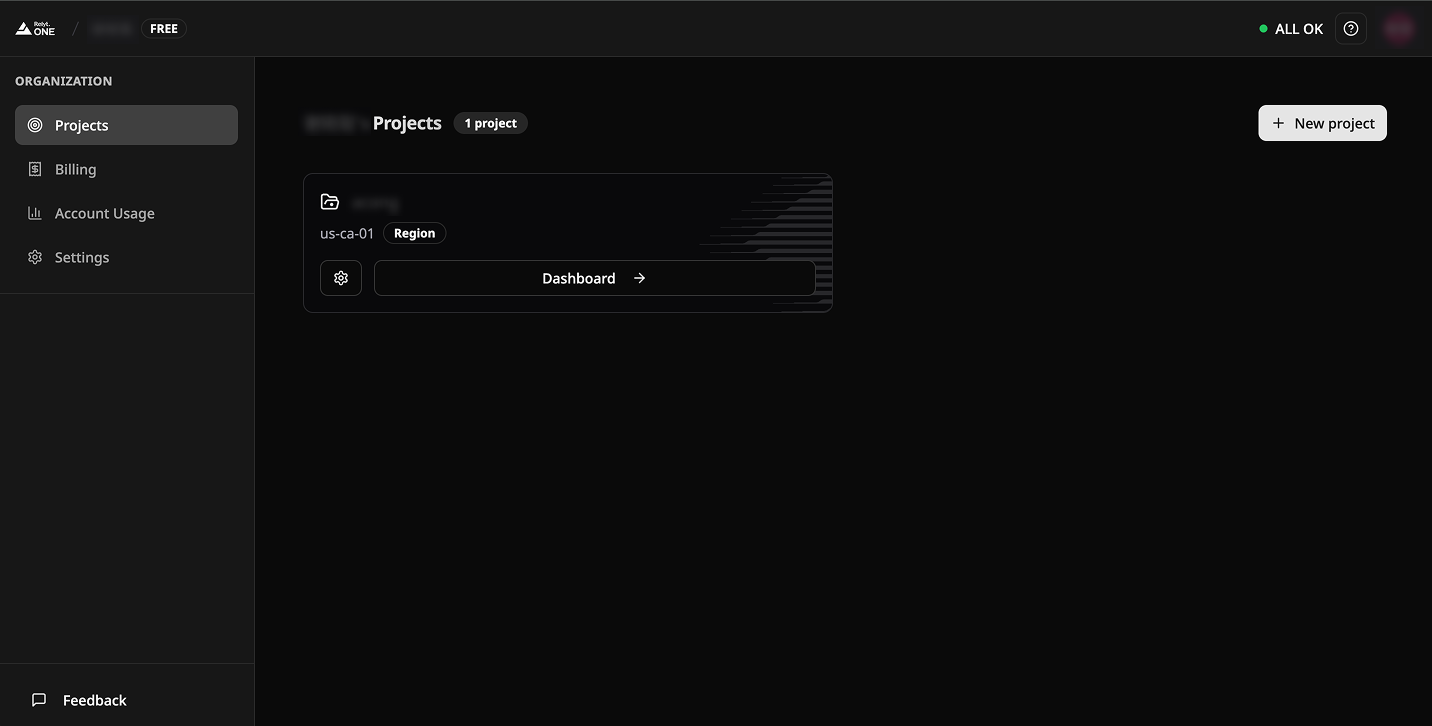
First, after you log in to your account, you will land on the console page, positioned in the *Projects* section. In the top right corner, there is a '**+ New project**' button. Click it to start creating a new project.
 # Configuration of project
* **Project Name**
* Set up your project name, 60 characters limited.
* **Region**
* Currently, only the Los Angeles region is available. Additional regions will be added soon.
* **Project password**
* Set up your project password, Please keep your password secure, as the platform does not store it. This password will be required for the subsequent connection process.
# Configuration of project
* **Project Name**
* Set up your project name, 60 characters limited.
* **Region**
* Currently, only the Los Angeles region is available. Additional regions will be added soon.
* **Project password**
* Set up your project password, Please keep your password secure, as the platform does not store it. This password will be required for the subsequent connection process.
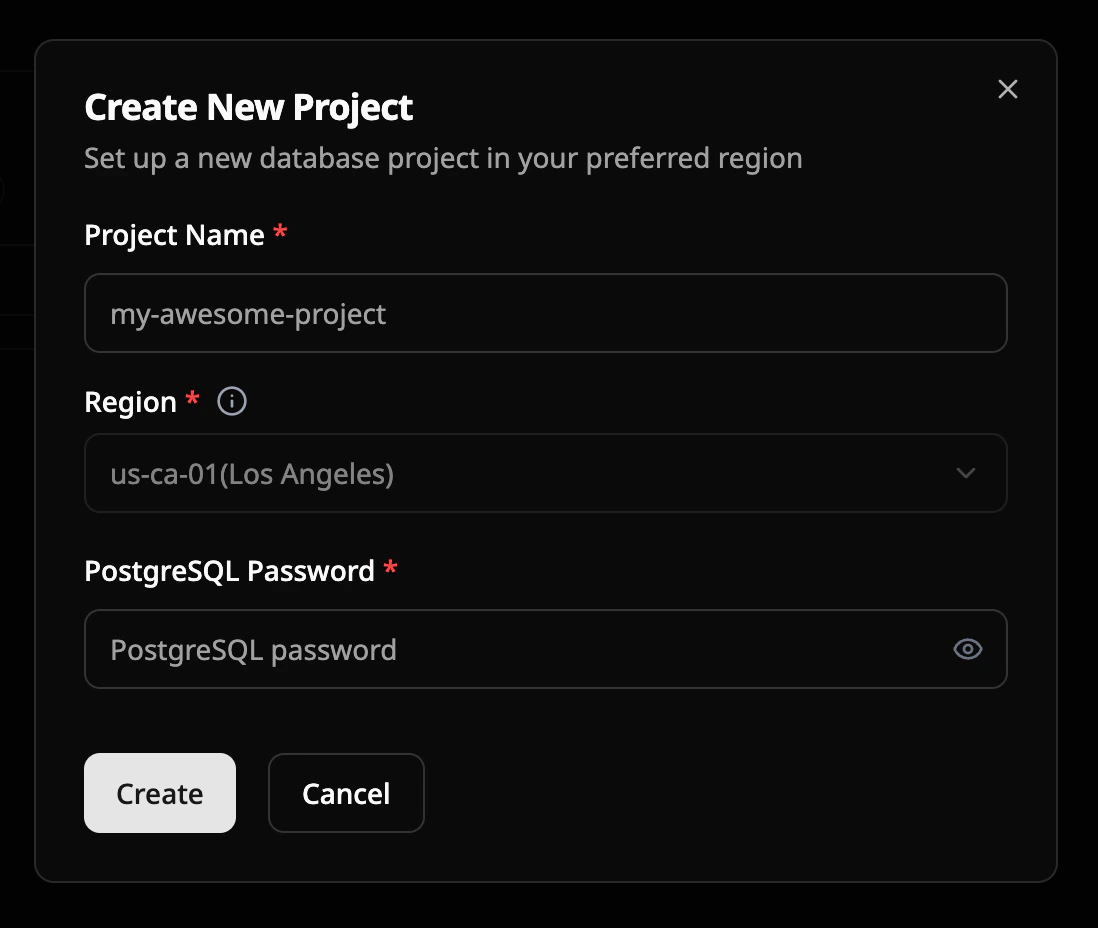 Once everything is configured, click the '**Create**' button to complete the project creation. Projects typically spin up within seconds. You can refresh the project status by clicking the refresh button.